Author Profile & Introduction: Hi creators! Main hoon MD Maqsood, ek professional video editor with 7+ years of hands-on industry experience. Post-production ki dynamic duniya mein continuously kaam karte hue maine visual storytelling ke kai technical aur creative aspects ko master kiya hai. Apne YouTube channel “m4editorofficial” (13.6K+ subscribers) aur Instagram page “m4_editor_official” (145K+ followers) ke zariye main roz hazaron creators ke sath practical editing tips, viral trends, aur production workflows share karta hoon. Mera main focus hamesha real, actionable aur ground-level editing techniques sikhane par rehta hai taaki beginners bina kisi paid course ke apni content quality ko next level par le ja sakein.
VN Video Editor Mein Auto Captions Kaise Lagaye: Complete Step-by-Step Guide
Aaj ke digital landscape mein short-form content jaise Instagram Reels, YouTube Shorts, aur TikTok ka trend peak par hai. Daily hazaron videos upload hoti hain, lekin viewer ka attention span kuch seconds ka reh gaya hai. Data batata hai ki lagbhag 70% se 80% audience social media feed ko mute ya low volume par scroll karti hai. Aise mein agar aapke video par captions ya subtitles nahi hain, toh viewer scroll karke aage badh jaata hai.
Subtitles video ko visually dynamic banate hain, retention badhate hain aur message ko clearly convey karte hain. Lekin ek-ek line sunkar manually type karna bohot time-consuming aur frustrating kaam hai. Yahi par kaam aata hai auto-caption feature. Aaj ke is comprehensive tutorial mein hum seekhenge ki VN Video Editor mein auto captions kaise lagaye, unhe professional look kaise dein, aur editing workflow ko 10x faster kaise banayein.
Auto Captions Kyun Zaroori Hain Aaj Ke Short Videos Mein?
Before diving into technical steps, yeh samajhna zaroori hai ki dynamic subtitles aapke content ke liye itne critical kyun hain:
- High Audience Retention: Animated captions viewer ki aankhon ko screen par lock karke rakhte hain, jisse Watch Time boost hota hai.
- Sound-Off Viewing Advantage: Busy environments jaise travel, office ya public places mein log bina sound video dekhte hain. Captions hone se unka experience break nahi hota.
- Better Algorithm Reach: Higher watch time platforms ke algorithm ko positive signal deta hai, jisse video viral hone ke chances double ho jaate hain.
- Accessibility: Captions un viewers ke liye bhi helpful hain jo hard-of-hearing hain ya accented speech ko samajhna chahte hain.
VN Video Editor mobile creators ke liye ek versatile, bina watermark wala (clean timeline) free tool hai jo desktop-level editing capability mobile par deta hai.
VN Video Editor Mein Auto Captions Kaise Lagaye: Step-by-Step Setup
Mobile devices par auto caption generate karne ka workflow kaafi smooth hai agar aap right steps follow karein. Niche diye gaye har step ko dhyan se implement karein:
Step 1: Video File Ko Clean Import Karein
- Apne mobile mein VN Video Editor app open karein.
- Niche bane “+” (Plus icon) par tap karein aur “New Project” select karein.
- Apni gallery se wo video clip select karein jisme audio bilkul clear ho, phir Next press karein.
- Timeline open hote hi sabse pehle video ke end mein aakar VN ka default 1-second “Input Title” (Ending Watermark) delete kar dein taaki export neat rahe.
Step 2: Auto Subtitle Engine Ko Activate Karein
- Timeline par video layer ke upar bane Text (T icon) ya lower menu bar mein scroll karke “Subtitle / Auto Captions” tool par tap karein.
- Yahan system aapse audio language detect karne ya choose karne ko kahega.
- Agar aapki video pure English mein hai toh English select karein. Agar aap Hindi mein bol rahe hain, toh Hindi ya Bilingual engine select karein, jaisa app version mein available ho.
- Generate Subtitles par tap karein. VN ka neural audio engine aapke track ko process karega aur speech-to-text algorithm speech patterns ko read karega.
Step 3: Transcription Timeline Verify Karein
Generation complete hone ke baad aapki primary video ke upar text blocks appear honge. Har line ek specific timestamp se automatically map ho jaati hai.
Generated Text Ki Accuracy Check Aur Quick Correction
AI transcription tools kitne bhi powerful hon, regional accents, background sound ya fast delivery ke chalte kuch words miss ho sakte hain. Isliye manual verification zaroorihai.
- Timeline ko shuru se play karein.
- Agar koi spelling, brand name ya pronunciation galat transcribe hua ho, toh us text block par click karein aur “Edit” option chunein.
- Wahan accurate word type karein.
- Punctuation Check: Question mark (?) aur comma (,) proper lagayein taaki sentence flow natural lage.
- Har text chunk ko 2 se 4 words per line mein split karein. Zyada lambi lines mobile screen par visual clutter create karti hain.
Captions Ko Viral Format Mein Style Aur Format Kaise Karein
Default white plain text boring lagta hai. Professional aesthetic lane ke liye aapko text styling par focus karna chahiye:
1. High-Readability Fonts Use Karein
Mobile screen par fancy cursive fonts readable nahi hote. Hamesha clean, bold, sans-serif typefaces chunein:
- The Bold Font
- Montserrat (Extra Bold/Black)
- Futura Heavy
- Bebas Neue
2. High-Contrast Colour Palette Chunein
Background chahe dark ho ya light, caption hamesha stand out karna chahiye
- Colour Schemes: Pure White text with a sharp Black Stroke (Border) at 15–20% intensity.
- Highlight Colour: Keywords par pop lane ke liye vibrant colours jaise Cyber Yellow (#FFD700), Neon Green, ya Soft Red use karein.
3. Text Positioning
Caption ko hamesha safe zone mein rakhein. Timeline ke natural bottom se lagbhag 20% upar rakhein taaki Instagram Reels ya Shorts ke UI elements (like, share icons aur profile name) aapke subtitles ko cover na karein.
High-Engagement Word-by-Word Pop Animation Kaise Banayein
Aapne viral reels par dekha hoga ki jaise-jaise creator bolta hai, har word screen par scale ya pop hokar highlight hota hai. Ise set karne ka practical method yehhai:
- Text Animation Section: Text block select karke Animation tab open karein.
- In-Animation: Scale Up ya Fade In select karein aur duration ko minimal (0.1s se 0.2s) set karein.
- Keyframing Dynamic Zoom: Agar kisi critical word par dramatic focus chahiye, toh text layer par starting point par keyframe add karein aur mid-point par scale ko 1.1x bada karein. Is micro-movement se viewer ka focus video se detach nahi hota.
Clear Audio Capture: Accurate Captions Ka Secret Foundation
Koi bhi AI caption generator tabhi 100% correct result dega jab aapka audio feed clean hoga. Garbled audio generation errors create karta hai, jisse aapka editing time double ho jaata hai
- .Mic Distance: Collar mic (lavalier) use karein jo mouth se 6–8 inches door ho.
- Background Noise Removal: Shoot karte waqt fan ya AC band rakhein. VN ke andar audio track par click karke Noise Reduction toggle on karein taaki speech frequencies crystal clear amplify ho sakein.
- Balanced Gain: Audio na zyada low honi chahiye aur na hi red-line clip honi chahiye (-6dB to -3dB ideal rehta hai).
Dynamic Sound Effects (SFX) Ke Sath Captions Ko Sync Karna

SCREENSHOT👇

Captions tab aur impressive lagte hain jab unke sath sync audio micro-effects shamil kiye jayein
- Text block ke theek starting frame par timeline cursor rakhein.
- Music / FX section mein jakar chota Pop, Click, ya Camera Shutter sound drop karein.
- Sound volume ko hamesha 15% – 25% ke beech rakhein taaki wo background audio lage aur main voice-over ko overpower na kare.
- Visual text popup aur auditory click ka sync brain mein strong psychological impact create karta hai, jisse retention rate significantly badhta hai.
High-Quality Rendering Settings For Social Media
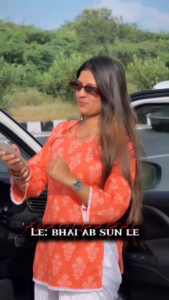
SCREENSHOT👇

Styling aur editing complete hone ke baad wrong export setting aapke text ko blurry bana sakti hai. VN se crisp clarity lene ke liye ye parameters follow karein
- Resolution: 1080p (1080×1920 for vertical reels). 4K har platform naturally compress karta hai, isliye 1080p optimal balance hai.
- Frame Rate (FPS): 30 FPS or 60 FPS (apne camera recording frame rate ke according).
- Bitrate: High ya Custom (15 to 20 Mbps). Low bitrate par text edges blocky aur pixelated ho jaate hain.
Bonus Tip: Batch Styling Hack For Lightning-Fast Workflow

SCREENSHOT👇

Ek-ek karke 50 text layers ko manually colour aur font dena bohot exhausting ho sakta hai. Time save karne ke liye yeh production hack use karein
- :Apply to All Method: Pehle text layer ko complete style karein—font, colour, shadow, stroke aur position finalise karein.
- Settings panel mein niche “Apply to All” ya “Batch Edit” checkmark tick karein.
- Ek single click se pure project ke sare caption layers par wahi uniform layout apply ho jayega. Is trick se aapka 45 minute ka manual formatting kaam sirf 30 seconds mein complete ho jaata hai.
Conclusion
Mobile par professional video editing ab kisi high-end PC setup ki mohtaj nahi hai. VN Video Editor ke dynamic captioning tools ko smartly use karke aap apne ordinary talking-head videos ko highly engaging, visually crisp aur audience-retentive pieces mein convert kar sakte hain. Ek achha video editor wahi hai jo tools ke technical controls ko creative storytelling ke sath blend karna janta ho. Aaj hi apne kisi raw video par ye steps practice karein aur difference dekhein
.